> For the complete documentation index, see [llms.txt](https://docs.arkis.xyz/home/llms.txt). Markdown versions of documentation pages are available by appending `.md` to page URLs; this page is available as [Markdown](https://docs.arkis.xyz/home/for-developers/arkis-api/api-keys.md).
# API Keys
In order to access the API, you must generate an API key in the Arkis App settings and include it in the Authorization header of every request. The sections below walk through the process and provide relevant development documentation.
## Create a new API key
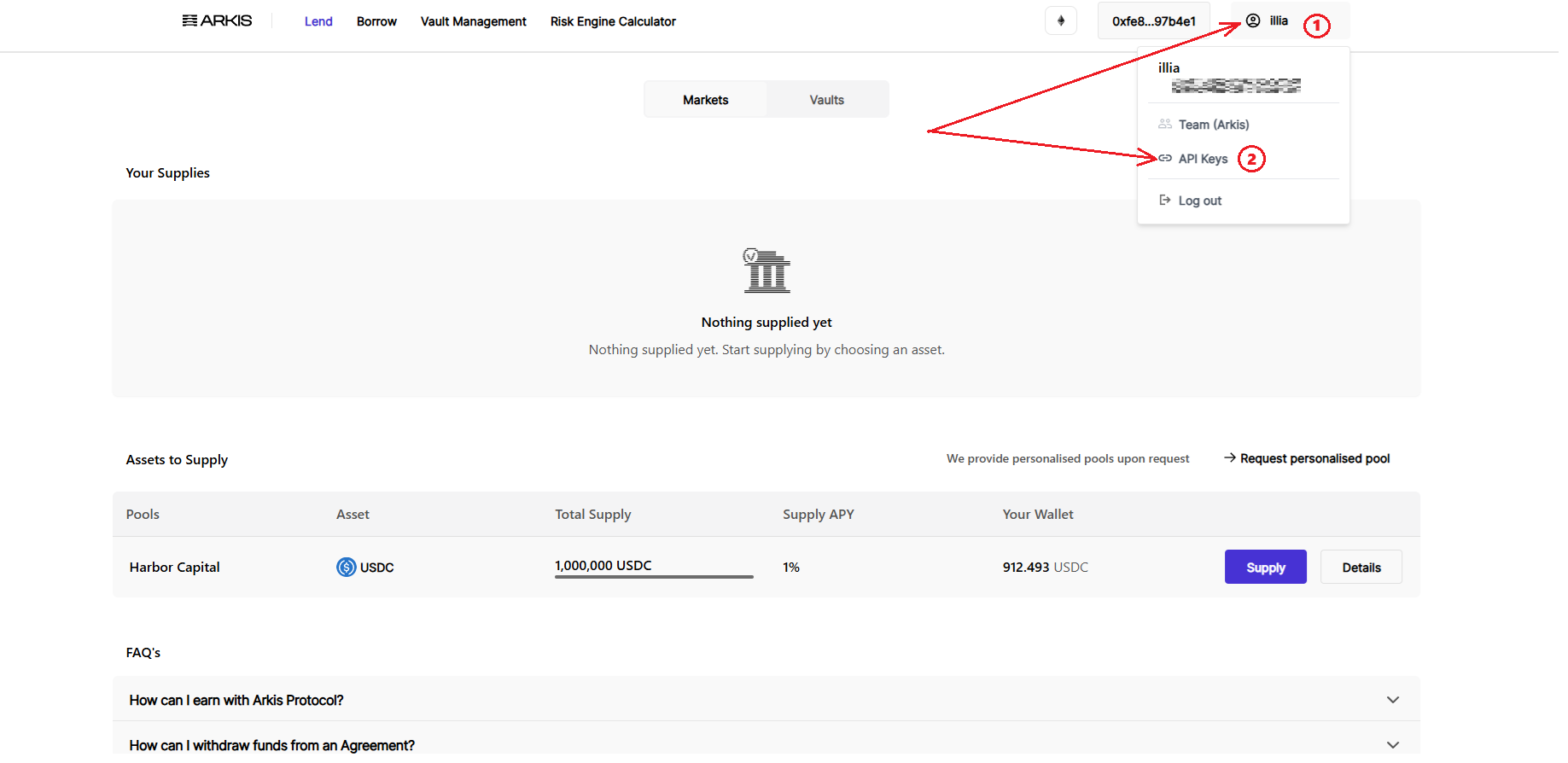
1. Go to [**API Key Management** page](https://app.arkis.xyz/settings/api-keys).
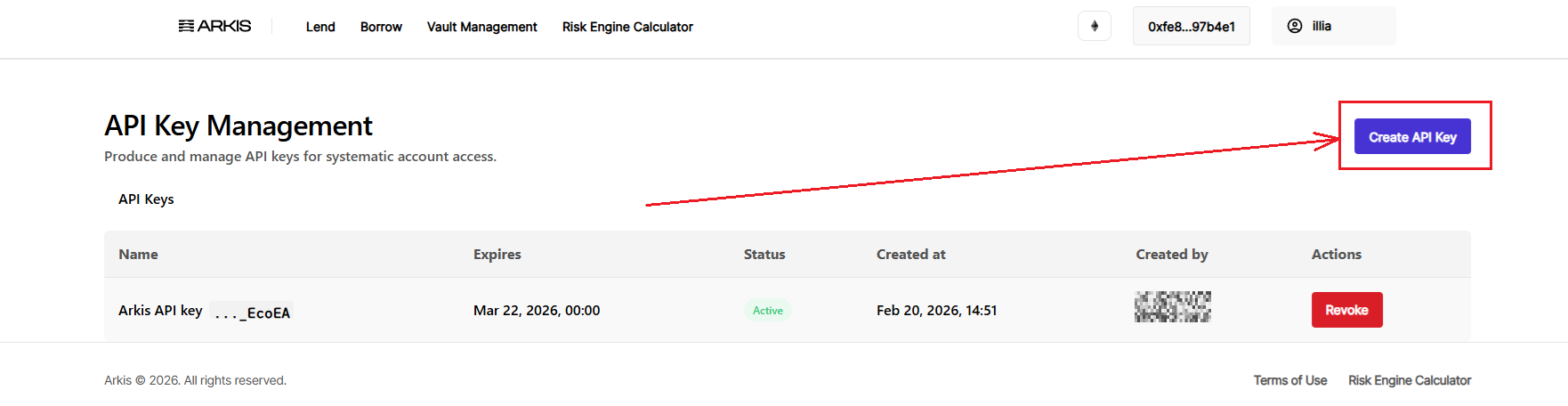
2. Click **Create API Key** button in the top right corner.
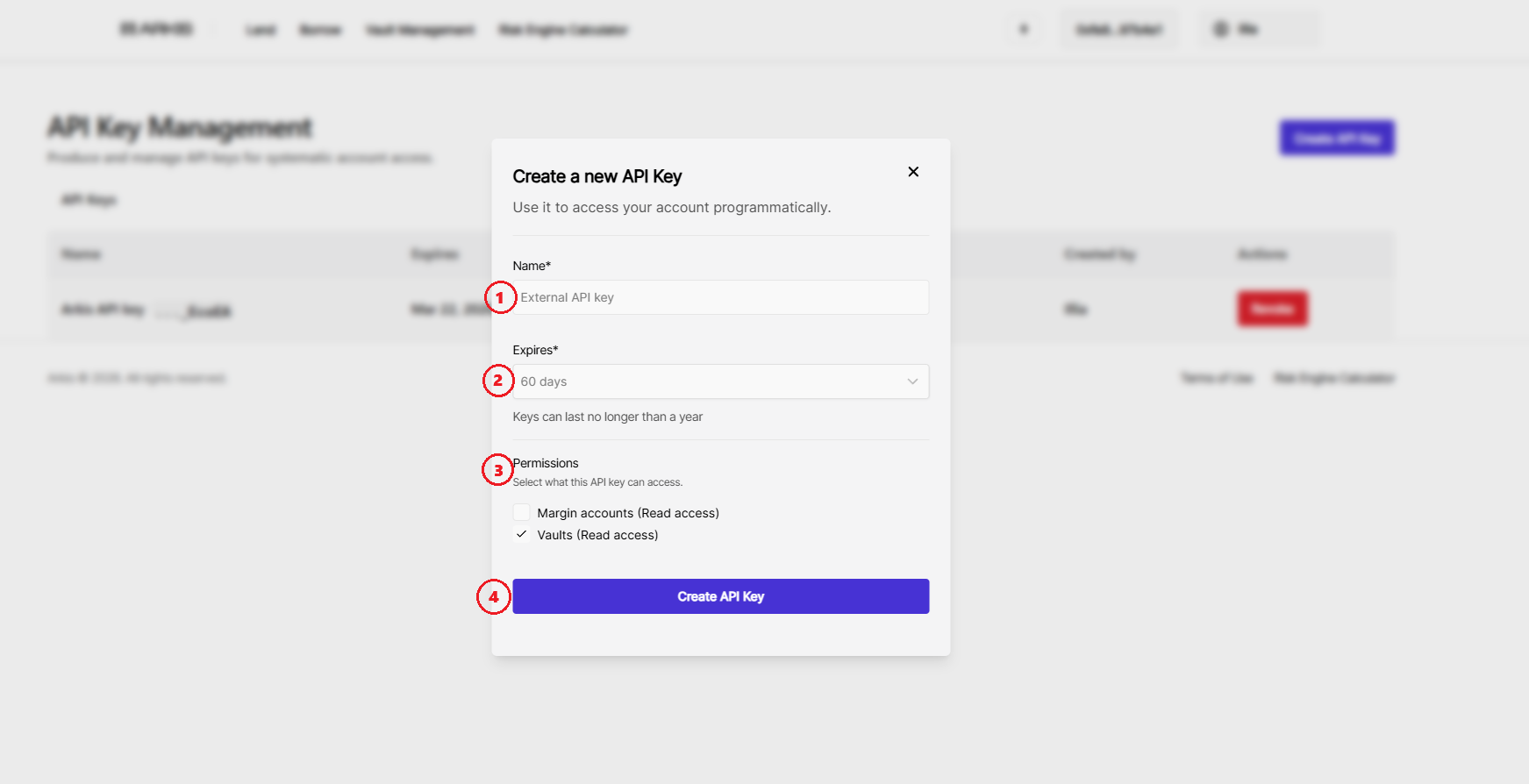
3. Enter a token name, select an expiration date from the predefined options or specify a custom date, and choose the desired permissions.
4. Click **Create API Key** to proceed.
Visual walkthrough
1. Go to [**API Key Management** page](https://app.arkis.xyz/settings/api-keys).
2. Click on **Create API Key** button in the top right corner.
3. Enter a token name, select an expiration date from the predefined options or specify a custom date, and choose the desired permissions.
{% hint style="warning" %}
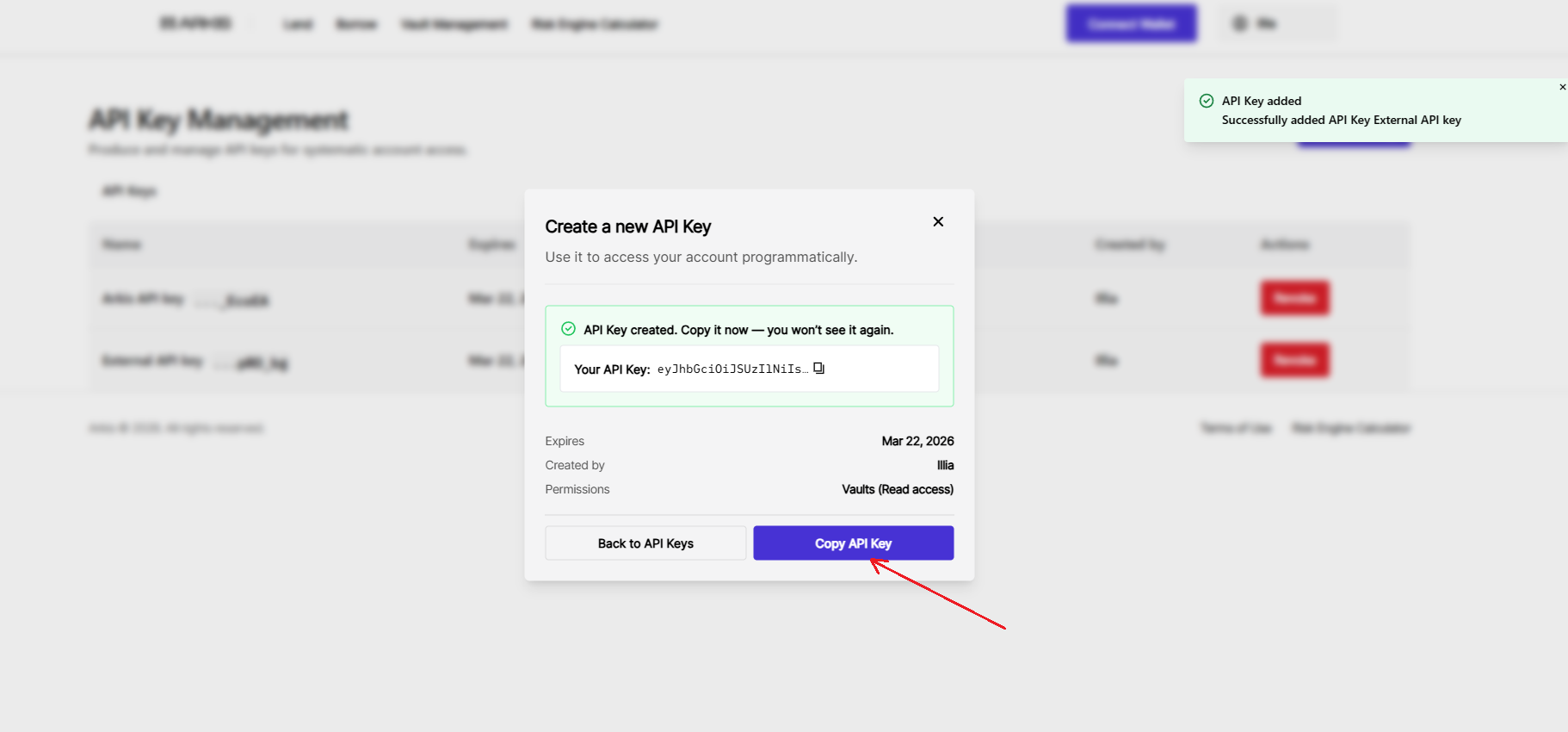
The token is displayed only once. Make sure to copy it immediately and store it securely. Do not save the token in plain text files. If the token is lost or compromised, it must be manually revoked: [#revoke-an-api-key](#revoke-an-api-key "mention").
{% endhint %}
## Revoke an API key
{% hint style="warning" %}
Only **Organization Admins** can revoke an API key
{% endhint %}
1. Go to [**API Key Management** page](https://app.arkis.xyz/settings/api-keys).
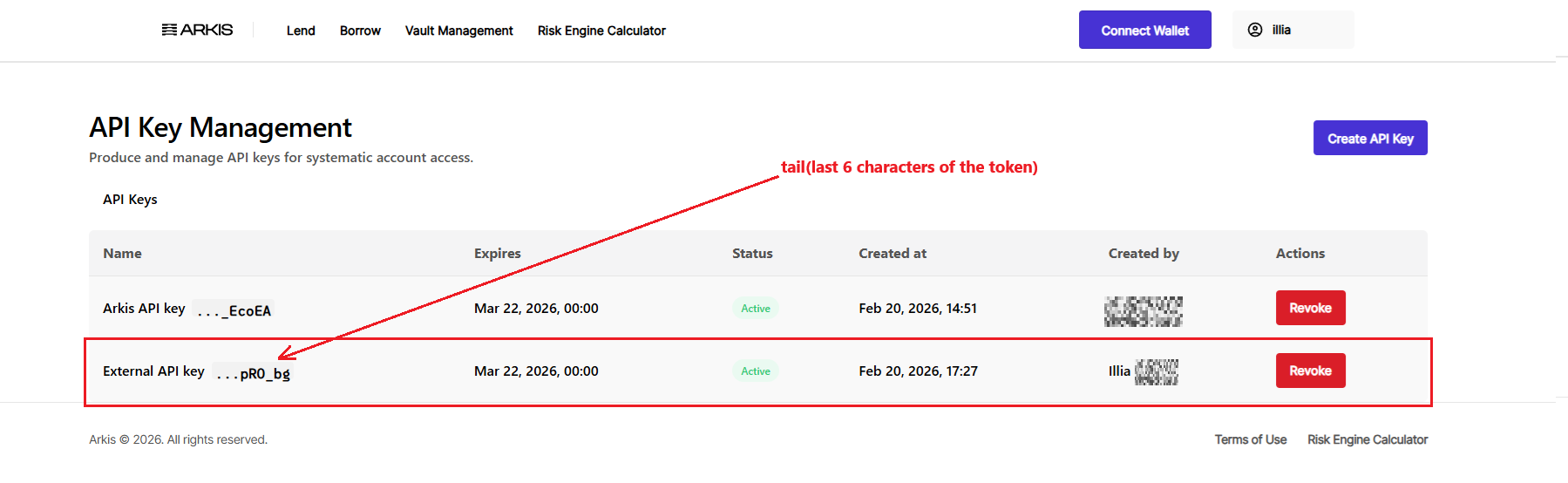
2. Locate the key by its name or tail (the last six characters of the key).
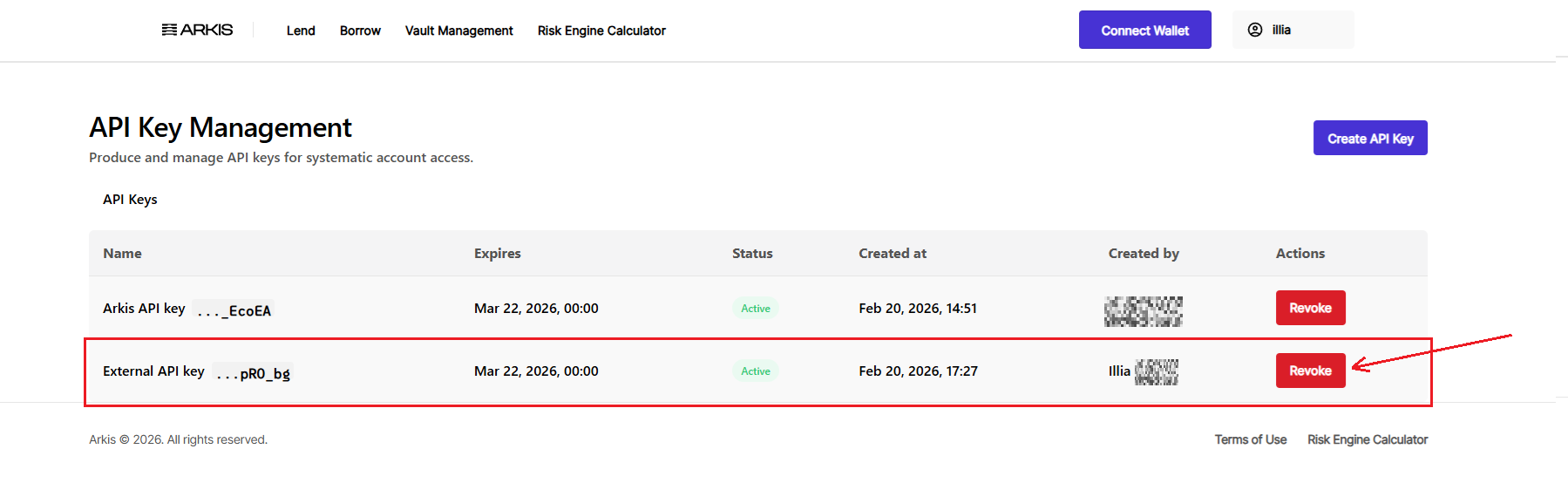
3. Click **Revoke.**
Visual walkthrough
1. Go to [***"API Key Management"*** page](https://app.arkis.xyz/settings/api-keys).
2. Locate the key by its name or tail (the last six characters of the key).
3. Click ***"Revoke"***.